


How to check if your PC is infected using Windows Defender?
Do you think your PC might be infected with a virus, but you don’t want to pay for antivirus? The good news is that Windows 10 and Windows 11 already include a powerful security solution called Microsoft Defender Antivirus (formerly known as Windows Defender), which can detect and remove most modern threats at no additional cost.
In this guide, you will learn how to check if your PC is infected, how to run a full scan, and what to do if Windows Defender finds suspicious files.
How do you know if your PC might be infected?
Before starting the scan, it is useful to recognize some signs that may indicate the presence of malware:
- The computer is running much slower than usual.
- The browser opens unknown pages or displays excessive ads.
- You discover unknown applications installed without your consent.
- The fan is constantly running at high speed, even when you are not using demanding applications.
- You receive unusual error messages.
- Files disappear or are modified without explanation.
- Unusually high network activity
These symptoms do not automatically confirm the existence of a virus, but they are sufficient reasons to perform a full check.
What is Windows Defender?
Microsoft Defender Antivirus is the security solution integrated into Windows. In recent years, it has evolved significantly and offers real-time protection against:
- Classic viruses
- Trojans
- Spyware
- Ransomware
- Potentially unwanted applications (PUA/PUP)
- Threats downloaded from the internet
For most home users, Microsoft Defender provides sufficient protection without the need to purchase commercial antivirus.
How to check if your PC has viruses using Windows Defender?
Step 1: Open the Windows Security app
In Windows 10 and Windows 11:
- Press the Windows key.
- Type Windows Security.
- Open the app displayed in the results.
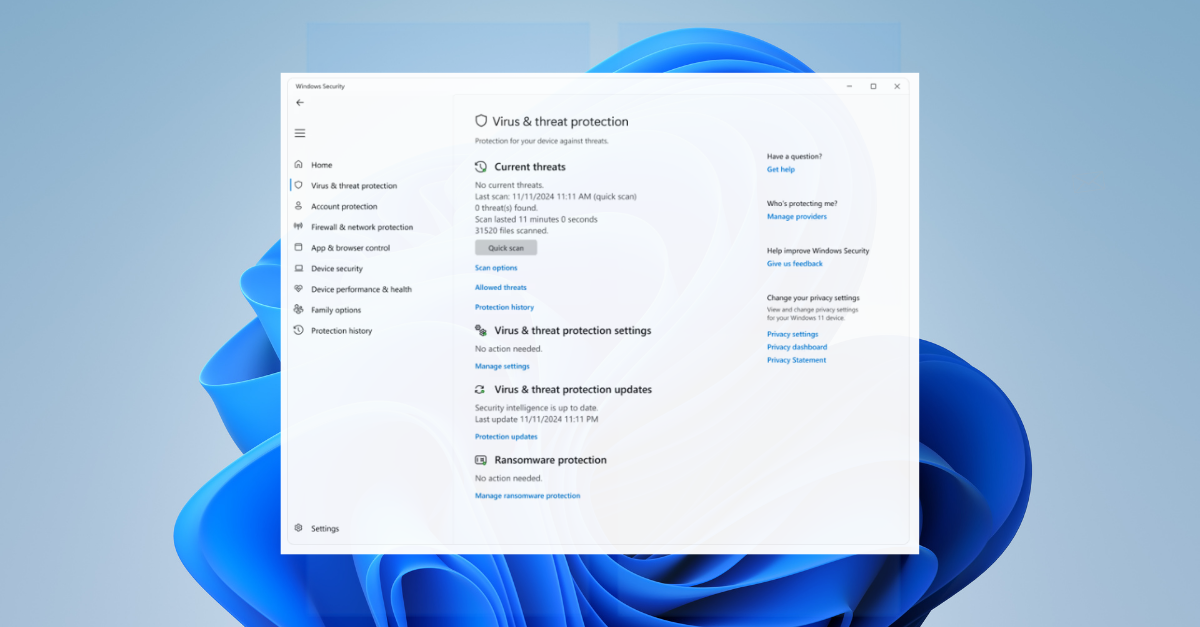
In the main window, you will see the overall security status of the system.
Step 2: Access virus protection
Select the section:
Virus & threat protection.
Here you will see:
- The latest scans performed.
- Detected threats.
- Antivirus database updates.
Step 3: Run a quick scan
Click the button:
Quick Scan
This check usually takes between 2 and 10 minutes and inspects the areas most frequently targeted by malware.
If no threats are detected, you will receive a message confirming that no problems were found.
How to perform a full scan with Windows Defender
A quick scan does not check all files on the computer.
For a more thorough analysis:
- In the “Virus & threat protection” section, click Scan options.
- Select Full Scan.
- Click Scan now.
Depending on the hard disk capacity and the number of files, the process may take from several tens of minutes to several hours.
This method is recommended if:
- You have recently downloaded files from unknown sources.
- You observe suspicious behavior.
- You haven’t performed a scan in a long time.
Use Microsoft Defender Offline for persistent threats
Some types of malware hide very well and can run before Windows is fully loaded.
For such situations:
- Go to Scan options.
- Select Microsoft Defender Offline Scan.
- Click Scan now.
The computer will restart and perform a thorough check before loading the operating system.
This feature is particularly useful against rootkits and other advanced threats.
What to do if Windows Defender finds a virus?
If threats are detected:
- Review the displayed list.
- Select the option recommended by Defender.
- Allow the removal or quarantine of suspicious files.
- Restart the computer if prompted.
After removal, it is recommended to run another full scan to confirm that the infection has been removed.
How to check if real-time protection is enabled
Real-time protection is essential as it blocks threats before they can affect the system.
To check:
- Open Windows Security.
- Go to Virus & threat protection.
- Enter Manage settings.
- Check if the Real-time protection option is enabled.
If it has been disabled without your consent, this may indicate a possible malware infection.
How to prevent your computer from being infected
In addition to using Windows Defender, adopt some simple security measures:
- Download programs only from official websites.
- Avoid suspicious attachments received via email.
- Update Windows regularly.
- Use strong passwords and two-factor authentication where possible.
- Do not disable real-time protection without a clear reason.
- Periodically back up important files.
For regular users, Windows Defender provides excellent protection when combined with regular updates and responsible browsing practices. Periodic system checks can prevent data loss, information theft, and performance issues caused by malware.
Source: support.microsoft.com


