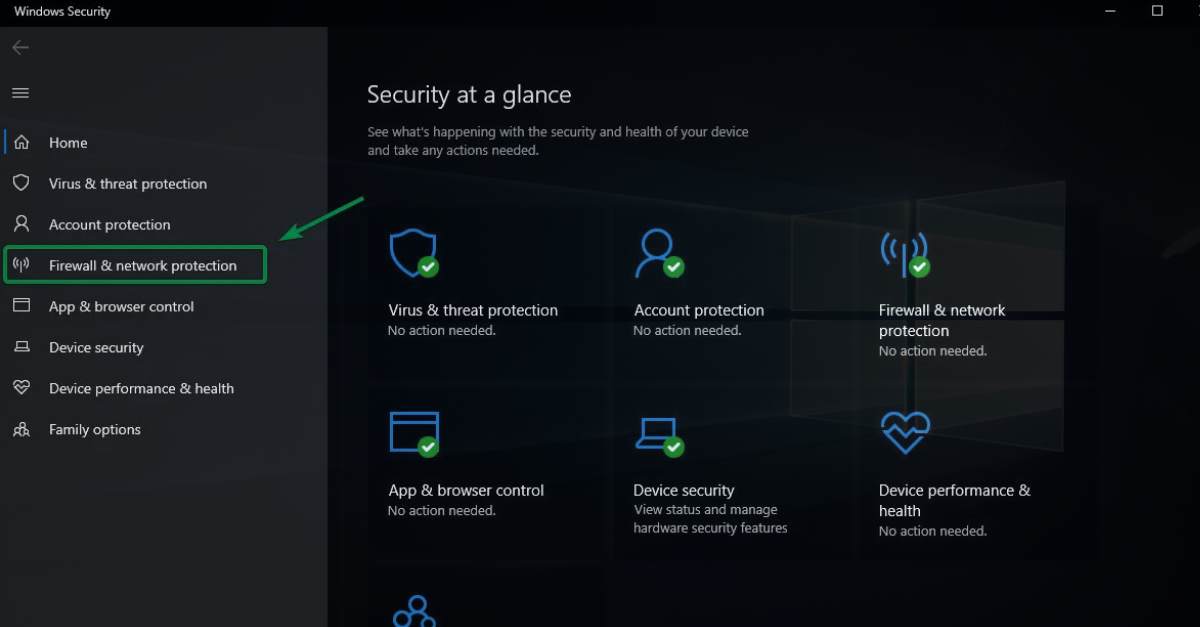
Firewall configuration for Windows 11 updates
Updates for Windows 11 are essential for security, performance, and compatibility. However, often, updates fail not due to the operating system, but because of restrictive configurations of firewalls and proxy servers. Microsoft has recently published updated recommendations for configuring the firewall and the entire network infrastructure to allow the proper functioning of the Windows Update service.
In this article, you will learn how to configure the firewall and proxy so that Windows 11 can receive updates without interruptions, avoiding connectivity errors, download blocks, and compliance issues.
Why do problems occur with Windows Update?
In enterprise environments, traffic to the internet is often filtered through next-generation firewalls, HTTPS proxies, and TLS inspection systems. While these measures increase security, they can interfere with the security mechanisms built into Windows Update. Microsoft recommends avoiding the interception of traffic to official update endpoints, as the service validates certificates and encrypted connections to prevent man-in-the-middle attacks.
When a firewall blocks certain Microsoft subdomains or when a proxy rewrites TLS certificates, Windows 11 clients may display symptoms such as:
- updates stuck in the “Downloading” state;
- Windows Update error codes;
- inability to download cumulative updates;
- issues with Microsoft Defender and definition updates;
- failure of updates for Microsoft Store and drivers.
Microsoft’s Recommended Principle
Microsoft recommends allowing direct access to Windows Update endpoints and excluding them from TLS or SSL Decryption inspection processes. Instead of relying on fixed IP addresses, organizations should allow access based on official Microsoft domains and subdomains, as the cloud infrastructure changes frequently.
This model provides two important advantages:
- maintains the integrity of cryptographic checks performed by Windows Update;
- reduces the number of incidents caused by changes in Microsoft’s infrastructure.
Configuring the firewall for Windows 11
For optimal operation, the firewall must allow outbound HTTPS connections to Windows Update services.
Essential Recommendations for Firewall Configuration
- Allow HTTPS traffic (port 443) to Windows Update endpoints.
- Avoid blocking Microsoft subdomains used for update distribution.
- Do not perform SSL Inspection for Windows Update traffic.
- Regularly check the official Microsoft endpoint lists, as these may be updated.
In organizations using solutions like Palo Alto, Fortinet, Check Point, or Cisco Secure Firewall, it is recommended to create dedicated policies for Microsoft Update services, separate from general web browsing policies.
Configuring the Proxy
Proxies are one of the most common causes of update problems in Windows 11.
Windows uses several proxy configuration mechanisms, including WinINET and WinHTTP. An incorrect configuration can lead to situations where the browser works normally, but Windows Update cannot communicate with Microsoft services.
Best Practices
- Use system-wide proxy settings, not just user-level settings.
- Ensure that Windows services can access the proxy even before user authentication.
- Check synchronization between WinINET and WinHTTP configurations.
- Avoid proxies that modify TLS certificates for Windows Update traffic.
Microsoft emphasizes that many Windows services run in contexts different from the logged-in user, which is why a configuration exclusive to per-user can generate hard-to-diagnose errors.
Delivery Optimization and Network Impact
Windows 11 uses the Delivery Optimization service to speed up the distribution of updates and reduce bandwidth consumption. It allows downloading packages from both Microsoft and other authorized devices on the network.
For organizations, it is recommended to evaluate Delivery Optimization policies so that:
- updates are efficiently distributed among local stations;
- internet consumption is reduced;
- updates are delivered faster to branches and remote locations.
How to Check if the Firewall is Blocking Windows Update
If you encounter update issues, check the following:
1. Test HTTPS Connectivity
Confirm that devices can access Microsoft endpoints without certificate errors.
2. Analyze Firewall Logs
Look for refused connections to Microsoft domains used by Windows Update.
3. Check Proxy Configuration
Compare WinHTTP and WinINET settings and validate system service access.
4. Examine Windows Update Log
Logs may indicate TLS authentication issues, DNS resolution, or proxy access.
The Foundation of a Stable and Secure Windows 11 Update Process
A correct configuration of the firewall and proxy is the foundation of a stable and secure Windows 11 update process. Microsoft’s main recommendation is clear: allow access to official Windows Update endpoints, avoid TLS interception, and use proxy configurations compatible with system services.
For organizations seeking compliance, security, and reduced administration times, implementing these best practices can eliminate most incidents related to Windows 11 updates and ensure a predictable experience for users and IT teams.
Source: microsoft.com