


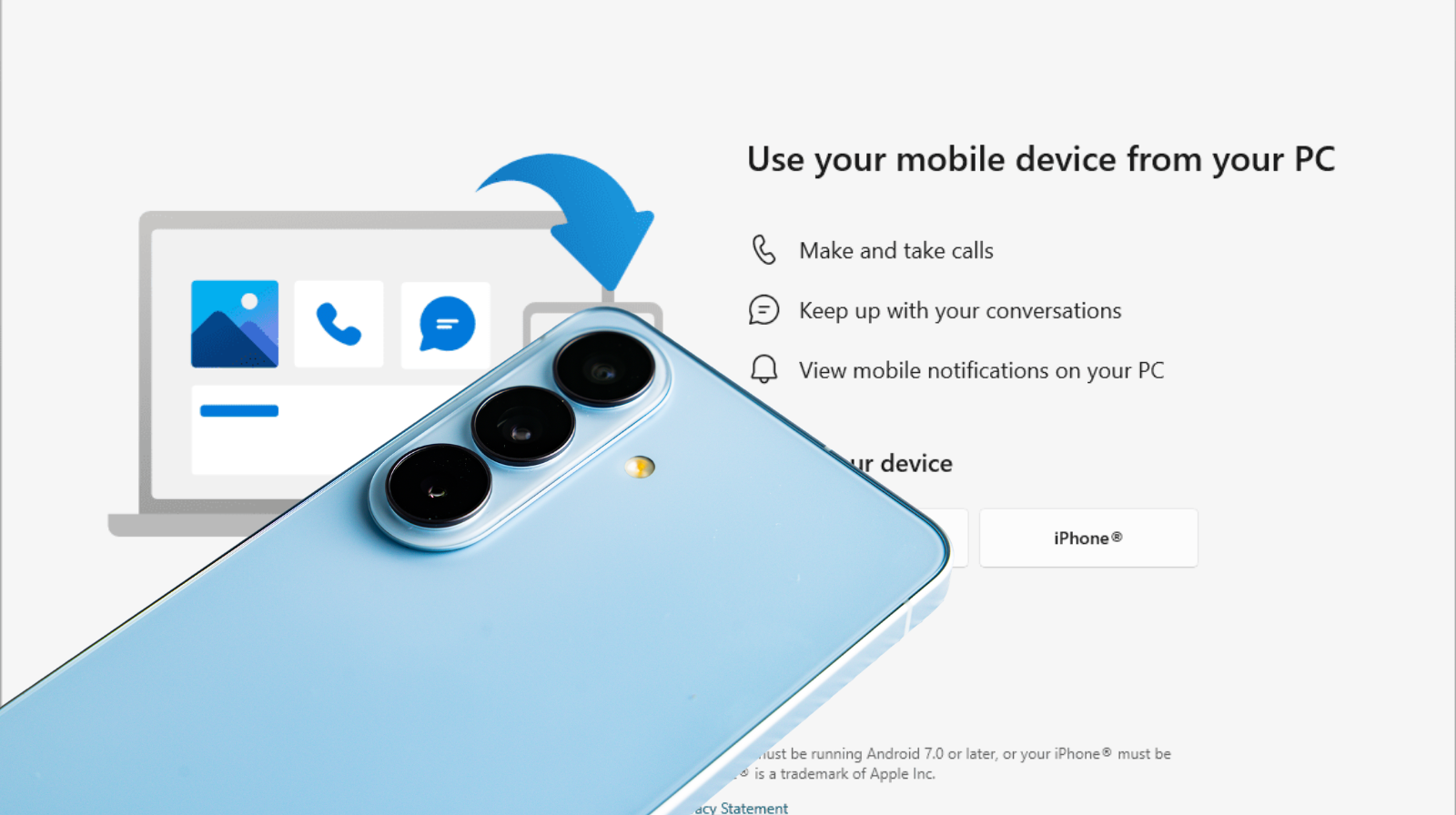
How to connect an Android phone to Windows
If you use both an Android phone and a Windows PC, you’ve probably needed at least once to transfer photos, read messages from your phone, or quickly access mobile files from your computer. The good news is that Microsoft and Google have significantly improved the integration between Android and Windows in recent years. Today, you can connect your Android phone to Windows wirelessly, view notifications directly on your PC, and transfer files much faster than before.
In this updated guide for 2026, you will learn the simplest and most efficient methods for connecting an Android phone to Windows 11 or Windows 10.
Why Connect Your Android Phone to Windows?
Integrating your phone and computer can bring numerous benefits:
- Quick access to photos and videos.
- Reading and sending SMS messages from your PC.
- Viewing phone notifications on the desktop.
- Fast file transfer.
- Copy and paste between devices.
- Managing calls directly from your computer.
- Accessing photos without a USB cable.
For users who work daily on a PC, these features can save time and eliminate the need for constant phone use.
Recommended Method: Microsoft Phone Link
The simplest method is to use the official Microsoft Phone Link. The app is included in Windows 11 and recently updated versions of Windows 10.
According to Microsoft, the app allows syncing notifications, messages, photos, and calls between Android and Windows.
How to Connect Your Android Phone to Windows via Phone Link
Step 1: Check if Phone Link is installed
On PC:
- Press the Start button.
- Search for Phone Link.
- Open the app.
If it’s not installed, you can download it from the Microsoft Store.
Step 2: Install the app on your phone
On Android:
- Open Google Play Store.
- Search for the Link to Windows app.
For many Samsung phones and certain recent Android models, the app is already integrated into the system.
Step 3: Connect the devices
On your computer:
- Open Phone Link.
- Select Android.
- Sign in with your Microsoft account.
On your phone:
- Open Link to Windows.
- Sign in with the same Microsoft account.
- Scan the QR code displayed on the computer.
After a few seconds, the devices will be paired.
What You Can Do After Connecting Your Android Phone to Windows?
View Android Notifications on PC
One of the most useful features is notification synchronization.
You can see:
- WhatsApp messages;
- Facebook notifications;
- emails;
- app alerts.
Everything appears directly on your Windows desktop.
Access Photos from Your Phone
Phone Link allows quick access to recent images from your phone.
No longer need to:
- connect a USB cable;
- send photos via email;
- use third-party apps.
Photos appear almost instantly in the Windows app.
Sending and Reading SMS Messages
You can:
- read SMS messages;
- reply to messages;
- initiate new conversations.
All directly from your computer’s keyboard.
For users who spend many hours at the office, this feature is extremely practical.
Making Phone Calls
If your PC has Bluetooth enabled:
- you can initiate calls;
- you can answer calls;
- you can view call history.
The phone remains connected, and the conversation is managed through the computer.
How to Transfer Files via USB Cable
If you want to copy many files quickly, a USB connection remains an excellent option.
Steps
- Connect your phone to your PC using a USB cable.
- Unlock your phone.
- Select the option:
File Transfer (MTP)
- Open File Explorer in Windows.
- Your phone will appear as a storage device.
You can copy:
- photos;
- videos;
- documents;
- music.
This method is recommended for large data transfers.
Wireless File Transfer
If you don’t want to use USB, there are several alternatives.
Nearby Share (Quick Share)
Android Quick Share allows file transfer between Android and Windows via Wi-Fi and Bluetooth.
Advantages:
- fast;
- free;
- wireless;
- works for photos and documents.
OneDrive
You can save files to Microsoft OneDrive from your phone and access them immediately on your PC.
This is one of the most secure methods for syncing important documents.
Connecting an Android Phone to Windows – Common Issues and Solutions
Phone does not appear in Phone Link
Check:
- internet connection;
- Microsoft account used;
- app updates.
PC does not detect phone via USB
Try:
- another cable;
- another USB port;
- selecting File Transfer mode on the phone.
Notifications do not sync
On Android:
- Go to Settings.
- Access Notifications.
- Allow access for the Link to Windows app.
Connecting an Android Phone to Windows – Frequently Asked Questions
Does it work with any Android phone?
Yes, most modern Android phones are compatible with Phone Link and Link to Windows.
Is Windows 11 required?
No. The feature is also available on Windows 10, although some advanced features are optimized for Windows 11.
Can I connect multiple phones?
Yes, but simultaneous management may vary depending on the app version and devices.
Is synchronization secure?
Yes. Microsoft uses account authentication and secure connections for data transfer.
Connecting an Android Phone to Windows – Simpler Than Ever
Connecting an Android phone to Windows is simpler than ever in 2026. With the Microsoft Phone Link app, you can access notifications, messages, photos, and calls directly from your computer, without cables and complicated applications.
For large file transfers, a USB connection remains the fastest solution, and for automatic synchronization, OneDrive and Quick Share are excellent alternatives.
If you use both Android and Windows daily, setting up this integration can significantly improve your productivity.


