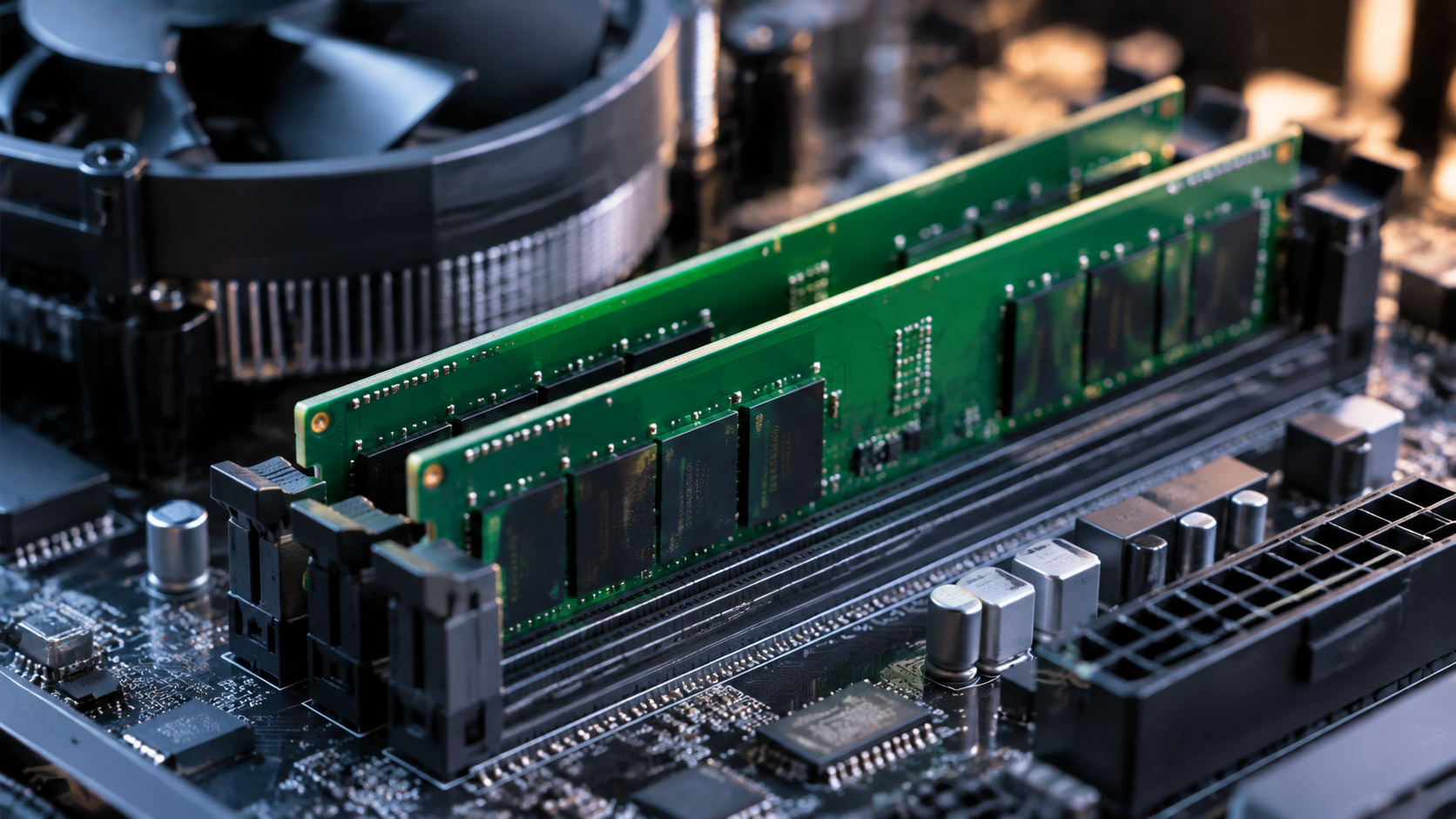
Why does Windows show less RAM than you have installed?
Your system has 16 GB, 32 GB, or even 64 GB of installed RAM, but Windows displays a smaller capacity? Although it may seem concerning at first glance, this situation is more common than you might think and does not necessarily indicate a fault in the RAM.
There are several possible explanations: some of the memory may be reserved for hardware devices, the system may be using an incompatible configuration, the BIOS may have incorrect settings, or one of the RAM modules may not be detected properly.
In short, Windows may display less usable RAM than the installed amount because some of it is reserved for hardware, not detected by the system, or limited by the computer’s configuration. To identify the exact problem, you need to check the memory recognized by the BIOS and Windows, as well as the amount reserved for hardware.
Next, we explain the main causes and the steps you can take to check and fix the problem in Windows 10 and Windows 11.
1. RAM is reserved for hardware
One of the most common explanations is the amount of RAM reserved for hardware. Windows may display part of the installed memory as unavailable for regular application use because it is allocated to certain system components.
For example, the integrated graphics card may use part of the computer’s RAM for graphic processing. Depending on the hardware configuration and firmware settings, there may also be other memory regions reserved for devices.
To check this value:
- Press
Ctrl + Shift + Escto open Task Manager. - Go to the Performance section.
- Select Memory.
- Check the values for installed memory, available memory, and the Hardware reserved field, if displayed.
Let’s assume you have 16 GB of RAM installed, and the system has reserved 1 GB for hardware. In certain configurations, approximately 15 GB may remain available for Windows and applications. This is just an indicative example. The reserved amount varies depending on the processor, motherboard, integrated graphics, and system configuration.
What can you do? If the reserved memory is unusually high, check the integrated graphics settings in the BIOS/UEFI and consult the documentation for your motherboard or laptop/PC before modifying the values.
2. Windows is installed in a 32-bit version
Another possible cause is the use of a 32-bit operating system. The x86 32-bit architecture has a theoretical address space of 4 GB, and the actual usable memory is usually less because part of the address space is required for hardware devices.
Therefore, if you have 8 GB of RAM installed but are using a 32-bit version of Windows, the system may not be able to utilize the full capacity.
To check the system architecture:
- Open Settings.
- Go to System and then About.
- Look for the System type section.
- Check if it shows a 32-bit or 64-bit operating system.
For modern computers with more than 4 GB of RAM, a 64-bit Windows system is the usual choice if the processor and other hardware requirements allow it.
Important: switching from 32-bit Windows to 64-bit Windows usually requires a clean installation of the operating system. Before reinstalling, back up important files.
3. BIOS does not detect all RAM
If Windows displays a much smaller amount than installed, check if the BIOS recognizes all memory modules. For example, if you have two 8 GB modules, the system should normally detect a total of 16 GB under compatible and operational conditions.
If the BIOS reports only 8 GB, the problem may be related to:
- A RAM module improperly installed.
- A defective memory slot or one with imperfect contacts.
- RAM modules incompatible with the motherboard.
- A BIOS version with compatibility issues.
- A defective RAM module.
- A limitation of the hardware platform.
How do you check?
- Check the installation of the RAM modules. Turn off the computer, disconnect it from power, and ensure that the modules are properly seated in the slots.
- Change the RAM slots. If you have two modules, check if they are installed in the slots recommended by the manufacturer, for example, A2 and B2.
- Test the modules individually. Start the system with one RAM module, then repeat the test with the other, using the same functional slot. This way, you can identify a module that is not recognized.
- Check the RAM slots. If both modules work separately, but one of the slots does not recognize them, there may be a problem with the slot or the motherboard.
After each change, enter the BIOS and check the detected memory. If you lack experience in handling hardware components, consult a technician to avoid damaging them.
4. Windows settings limit usable memory
Sometimes, Windows may have startup options configured that limit the available memory. A useful check is the “Maximum Memory” setting in System Configuration:
- Press
Win + R. - Type
msconfigand press Enter. - Open the Boot tab.
- Select Advanced options.
- Check the Maximum memory option.
Normally, this option should not be checked to impose an artificial memory limit. If it is checked and has a configured value, note the existing settings and check if they are intended.
If you have no special reason to limit memory, uncheck the option, confirm the change, and restart your PC. Do not modify other startup options without understanding their effects. In particular, it is not necessary to manually set a value equal to the installed memory.
5. Integrated graphics use RAM
PC systems without a dedicated graphics card often use the integrated graphics in the processor. This uses system memory for certain graphic operations. Depending on the platform, the BIOS may reserve a preset amount of RAM for integrated graphics, and the graphics system may also use dynamically shared memory. This means that the installed physical RAM is not always equal to the memory available exclusively for applications.
For example, a PC with 16 GB of RAM and integrated graphics may show a certain amount of memory reserved for hardware. The exact value depends on the processor model and firmware configuration.
If you have a dedicated graphics card, it usually has its own video memory (VRAM), but there may still be shared RAM available for certain operations.
Do not disable integrated graphics without first checking the system configuration and how the monitor is connected.
6. RAM modules are incompatible or malfunctioning
If you have recently added RAM, check if the modules are compatible with the motherboard or laptop. The total supported capacity, type of memory, module configuration, and support provided by the processor can influence the detected amount. For example, not every combination of DDR4 or DDR5 modules is supported by every platform.
For diagnosis:
- Consult the manufacturer’s official specifications.
- Check if the modules are installed in the recommended slots.
- Test the modules individually, if the procedure is safe and compatible with the system.
- Run Windows Memory Diagnostic or a memory diagnostic tool like MemTest86 if you suspect errors.
A memory test can identify certain problems, but a result without errors does not guarantee that all compatibility issues have been excluded. If the system does not boot correctly after installing a new module, revert to the functional configuration and check the manufacturer’s documentation.
It is recommended to check the compatibility of the RAM module with the motherboard or laptop beforehand, before purchasing new memory. Consult the manufacturer’s documentation to confirm the type of memory supported, the maximum capacity allowed, and compatible configurations. This way, you avoid purchasing an incompatible module that may prevent the system from booting correctly.
7. BIOS or firmware requires an update
Some motherboards and laptops may have compatibility issues with certain RAM modules, and BIOS/UEFI updates can sometimes resolve such situations.
However, updating the firmware is not the first recommended step if Windows shows less RAM than you have installed.
First, check the memory detected in the BIOS, the compatibility of the modules, and the configuration settings. If the manufacturer explicitly mentions a relevant issue in the notes for a BIOS version, the update may be justified.
Download the firmware only from the manufacturer’s official website and follow the instructions for the exact model of the device. An interruption in the update process can render the system non-functional.
How to quickly check why Windows is not using all the memory?
For an effective diagnosis, follow this order:
| Check | What to look for | What the result may indicate |
|---|---|---|
| Task Manager → Performance → Memory | Installed memory and hardware reserved memory | Reservation for devices or unavailable memory |
| Settings → System → About | Windows architecture | A 32-bit version may limit usable memory |
| BIOS/UEFI | Total detected memory | Mounting, compatibility, or hardware issues |
msconfig → Boot → Advanced options | The Maximum memory option | A possible manually configured limitation |
| Motherboard documentation | Maximum capacity and RAM compatibility | A platform limitation or an unsupported configuration |
| RAM diagnostic tool | Memory errors | Possible issues with modules or memory subsystem |
It is important to differentiate between installed memory, hardware reserved memory, available memory, and actually used memory. These values represent different things and should not be interpreted as equivalent.
Frequently asked questions about RAM in Windows
I have 16 GB RAM, why does Windows show only 8 GB?
If Windows reports only 8 GB out of 16 GB installed, first check if the BIOS detects all the memory. In case the BIOS also sees only 8 GB, check the installation of the modules, compatibility, and slots. If the BIOS detects 16 GB, investigate the Windows architecture, hardware reserved memory, and any configuration limitations.
Is it normal for Windows to reserve some RAM?
Yes. A certain amount of memory reserved for hardware is normal, especially on systems with integrated graphics. However, an unusually large difference should be investigated based on the computer’s configuration.
How can I free up hardware reserved memory?
There is no one-size-fits-all solution. If memory is reserved for integrated graphics, certain BIOS/UEFI settings may influence allocation. If the reservation is caused by a configuration or compatibility issue, the cause must be identified before modifying settings.
Windows 11 use 32 GB or 64 GB RAM?
Yes. Modern editions of Windows 11 on 64-bit can support these capacities, but the exact limit depends on the edition of the operating system. Additionally, the motherboard, processor, and hardware configuration must accept the installed memory.
If Windows shows less RAM, does it mean the memory is faulty?
No. A smaller amount of usable RAM can be explained by hardware reservation, the architecture of the operating system, or firmware settings. A module failure is just one of the possible causes and should be checked through diagnostics.
Before investing in additional memory
If Windows shows less RAM than you have installed, do not immediately assume that a memory module is faulty. Start by checking the values in Task Manager and the amount of memory detected by the BIOS/UEFI. Then check the architecture of the operating system, hardware reserved memory, startup options, and module compatibility.
Before taking any action, ensure that you have identified the cause of the RAM difference. This way, you will know whether a simple adjustment of settings or a hardware intervention is needed, without spending money unnecessarily on components you may not need.