How to create a bootable Windows 11 USB flash drive
Installing Windows 11 from a bootable USB flash drive is the fastest and safest method in 2026. Whether you want to reinstall the operating system, upgrade a new PC, or repair a computer that won’t boot, a bootable Windows 11 flash drive is essential.
In this step-by-step guide (updated for May 2026), you will learn:
- how to create a bootable Windows 11 USB flash drive;
- where to download the official ISO image;
- how to use Media Creation Tool or Rufus;
- what settings to choose for GPT, UEFI or MBR;
- how to install Windows 11 from a flash drive;
- the most common problems and their solutions.
What is a bootable USB flash drive?
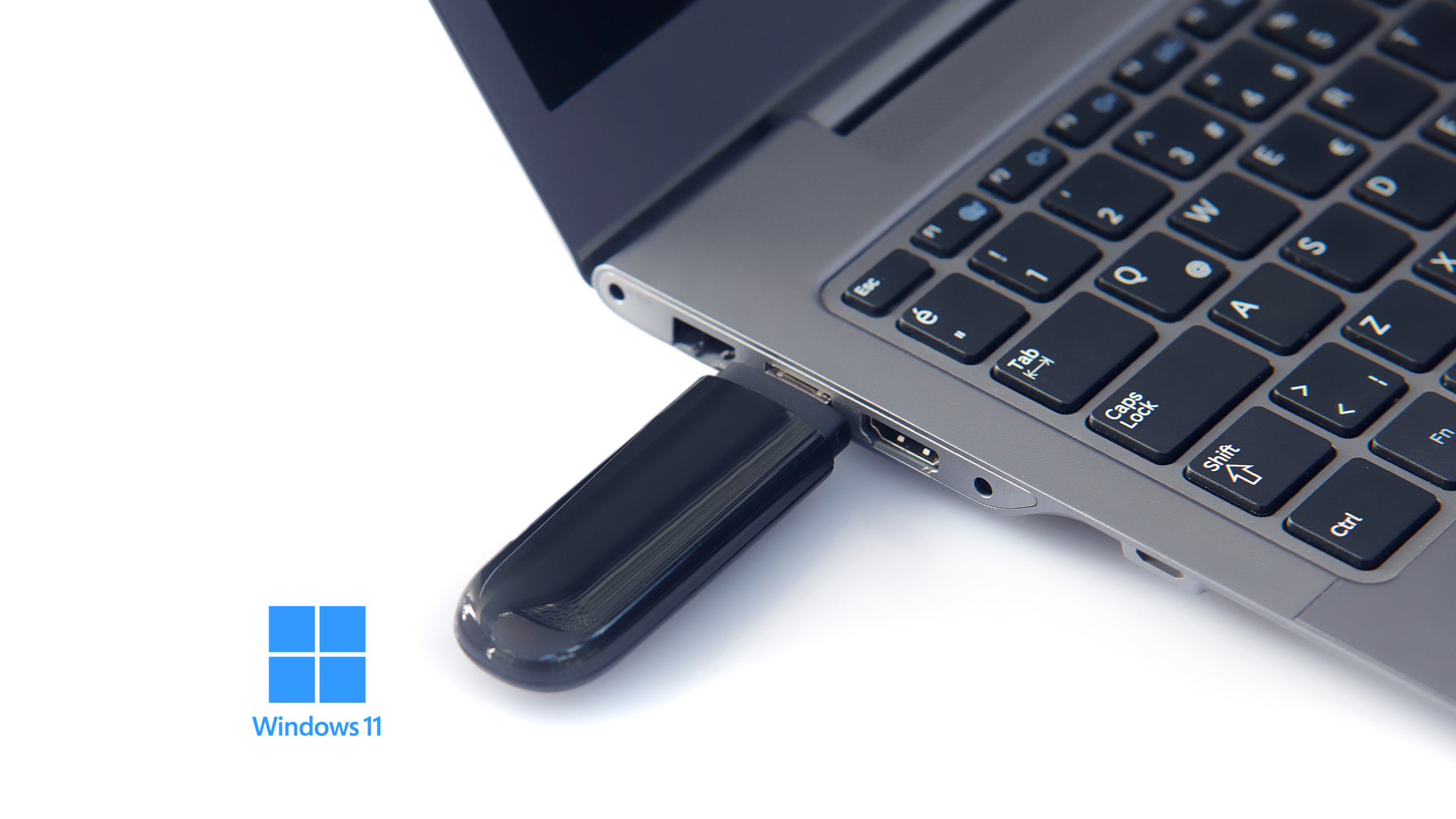
A bootable USB flash drive is a USB device specially configured to boot a computer and install Windows 11 without using a DVD or other physical media.
Main advantages:
- fast installation;
- compatibility with laptops without a DVD drive;
- faster transfer than DVD;
- easy Windows 11 reinstallation;
- troubleshooting and recovery capabilities.
What you need before you start
1. USB flash drive with a minimum capacity of 8 GB
Recommended:
- USB 3.0;
- 16 GB capacity for better performance.
Note: all data on the flash drive will be deleted.
2. Stable internet connection
The Windows 11 ISO image may exceed 6 GB in 2026.
3. Working computer
You can create a bootable flash drive on:
- Windows 10;
- Windows 11;
- Linux;
- macOS.
How to download official Windows 11
To ensure security and stability, download Windows 11 only from official Microsoft sources.
You have two options:
- Media Creation Tool;
- official Windows 11 ISO image
Download both options only from the official Microsoft website. Avoid unofficial sites, as they may contain malware, modified versions, or corrupted files.
Method 1 – Create a bootable Windows 11 USB flash drive with Media Creation Tool
This is the official Microsoft method and the simplest for most users.
Step 1 – Download Media Creation Tool
Go to the Microsoft website and download the tool for Windows 11.
Step 2 – Insert the USB flash drive into the appropriate port
Connect the flash drive to the computer and check:
- that it has a minimum of 8 GB;
- that it does not contain important files.
Step 3 – Run the application
Open Media Creation Tool and:
- accept the terms;
- choose the language;
- choose the Windows 11 edition.
Step 4 – Select „USB flash drive”
The program will automatically detect the connected USB flash drive. Select the appropriate device and continue.
Step 5 – Wait for the process to complete
The program will:
- download Windows 11;
- format the flash drive;
- copy bootable files.
Process duration:
- from 10 to 40 minutes;
- depending on internet and USB speed.
Method 2 – Create a bootable Windows 11 flash drive with Rufus
Rufus is one of the most popular programs for creating bootable flash drives and is preferred by advanced users.
It is ideal if:
- you want more control over the installation;
- you are installing Windows 11 on incompatible hardware;
- you need advanced options;
- you want to create the flash drive faster.
Advantages of Rufus in 2026
- free;
- very fast;
- compatible with UEFI and BIOS;
- supports TPM and Secure Boot bypass;
- allows creating a local Windows account;
- also works for Windows 10 or Linux.
How to use Rufus for Windows 11
1. Download Rufus
Only use the official Rufus website.
2. Download the Windows 11 ISO image
Save the ISO file to your computer.
For ARM computers, you must use the ARM64 ISO image, not the standard x64 version.
3. Insert the USB flash drive
Connect the flash drive to your PC or laptop and open Rufus.
4. Configure Rufus correctly
Use the following recommended settings (May 2026):
- Device → USB flash drive;
- Boot selection → Disk or ISO image;
- Partition scheme → GPT;
- Target system → UEFI (non-CSM);
- File system → NTFS.
These settings are recommended for almost all modern systems with Windows 11.
GPT or MBR? What do you choose?
GPT + UEFI (recommended)
Advantages:
- full compatibility with Windows 11;
- faster startup;
- supports Secure Boot;
- better security.
MBR + Legacy BIOS
Used only for:
- very old PCs;
- systems without UEFI.
Special Rufus options for Windows 11
After pressing the START button, Rufus may display additional options:
- removal of TPM 2.0 requirement;
- removal of Secure Boot verification;
- removal of Microsoft account creation requirement;
- automatic creation of a local account;
- deactivation of telemetry prompts.
These features are useful for:
- older computers;
- fast installations;
- systems officially incompatible with Windows 11.
How to start Windows 11 installation from a flash drive
After preparing the bootable flash drive:
1. Insert the bootable USB flash drive into your PC or laptop
2. Restart your computer
3. Enter the Boot Menu or BIOS
Immediately after restarting, hold down the appropriate key for the BIOS/UEFI menu (depends on the system). Commonly used keys:
- F2;
- F12;
- ESC;
- DEL.
If these options don’t work, check which key (or combination of keys) to use on your laptop or motherboard manufacturer’s website.
4. Select the bootable USB flash drive
In BIOS/UEFI, find the boot order setting and make sure the USB flash drive is first on the list. Save the settings and restart your computer.
5. Install Windows 11
Follow the on-screen instructions.
Choose your preferred language, time format, and keyboard, then click “Next” and “Install now”.
If you have a Windows product key, enter it when prompted. If you don’t have it handy, you can select “I don’t have a product key” and continue (you can activate Windows later).
Select the edition of Windows 11 that matches your license and click “Next”.
Accept the license terms.
Choose the installation type: Custom – Choose “Custom: Install Windows only (advanced)” to perform a clean installation.
You will see a list of existing partitions on your hard drive.
To perform a clean installation:
If you want to remove everything from the hard drive, delete all partitions (Note: this will delete all data from the computer). After deleting all partitions, select the unallocated space and click “Next”. Windows will automatically create the necessary partitions.
If you want to keep some existing partitions on the drive:
If you want to install Windows only on a specific partition (for example, where the operating system was previously installed), select only that partition and click “Format” to format it. Then click “Next” to continue the installation. The remaining partitions and data on them will remain intact.
After deleting all partitions, select the unallocated space and click “Next”. Windows will automatically create the necessary partitions and begin the installation. The computer will restart several times during this process. Wait for the installation to complete.
Configuration:
After installation, perform the initial configuration. Select your region, configure your keyboard, and connect to a Wi-Fi network. When prompted to sign in with a Microsoft account, you can create one or use a local account (possible with Rufus). Configure privacy settings and personal preferences.
Configure privacy settings and personal preferences. After the initial setup is complete, you will be taken to the Windows desktop. Make sure to download and install all available updates and necessary drivers for your computer.
Media Creation Tool vs Rufus
| Feature | Media Creation Tool | Rufus |
|---|---|---|
| Official Microsoft method | Yes | No |
| Easy for beginners | Yes | Yes |
| Installation on incompatible PCs | Limited | Yes |
| Advanced options | No | Yes |
| USB creation speed | Good | Very good |
| GPT/UEFI support | Yes | Yes |
Recommendation
- For regular users → Media Creation Tool;
- For advanced users → Rufus.
Frequently asked questions and solutions
Bootable USB flash drive does not appear at startup
Try:
- another USB port;
- USB 2.0 instead of USB 3.0;
- enable USB Boot in BIOS.
Error „This PC can’t run Windows 11”
Possible causes:
- TPM disabled;
- Secure Boot disabled;
- incompatible processor.
Quick solution:
- use Rufus and enable TPM/Secure Boot bypass.
Installation is very slow
Check:
- flash drive speed;
- ISO integrity;
- used USB port.
USB 3.0 provides significantly better performance.
Windows does not detect SSD
May be missing:
- NVMe driver;
- Intel RST driver.
In this case:
- download manufacturer drivers;
- load them during installation.
How to check if a USB flash drive is bootable
You can test:
- directly in BIOS;
- in a virtual machine;
- using programs such as Ventoy or VirtualBox.
Popular alternatives to Rufus in 2026
In addition to Rufus, users also use:
Ventoy – an increasingly popular solution for multiple ISOs
Ventoy is very popular because:
- it does not require formatting every time it is used;
- it allows storing multiple ISO systems on the same flash drive;
- it supports Windows, Linux and recovery tools.
Frequently Asked Questions (FAQ)
Can I use a local account when installing Windows 11?
Yes, but it depends on the installation method:
Official installation (no changes)
- Microsoft aggressively promotes creating an online user account
- sometimes it is mandatory during initial setup
- the local account option may be hidden or difficult to obtain
Installation with Rufus (with bypass)
- you can activate the removal of the Microsoft account requirement
- you can directly create a local account
- sometimes the online login prompt does not appear at all
A local account still exists, but it’s easier to use if you install Windows 11 with Rufus and bypass options.
Can I create a bootable Windows 11 USB flash drive without Rufus?
Yes. Media Creation Tool is Microsoft’s official solution.
Can I install Windows 11 without TPM 2.0?
Yes, by using Rufus and the bypass option.
(Note: your computer or laptop will become an “unsupported device” and Microsoft may refuse technical support. In addition, Microsoft may limit or change support in the future.)
What capacity should a bootable USB flash drive have?
Minimum 8 GB, 16 GB recommended.
Can I use the same bootable flash drive for multiple systems?
Yes, using Ventoy.
GPT or MBR for Windows 11?
GPT + UEFI is the recommended version for all modern systems.